Now, if the vendors go to the Vendor Dashboard–> Products, they will see the advertising section like the image below,
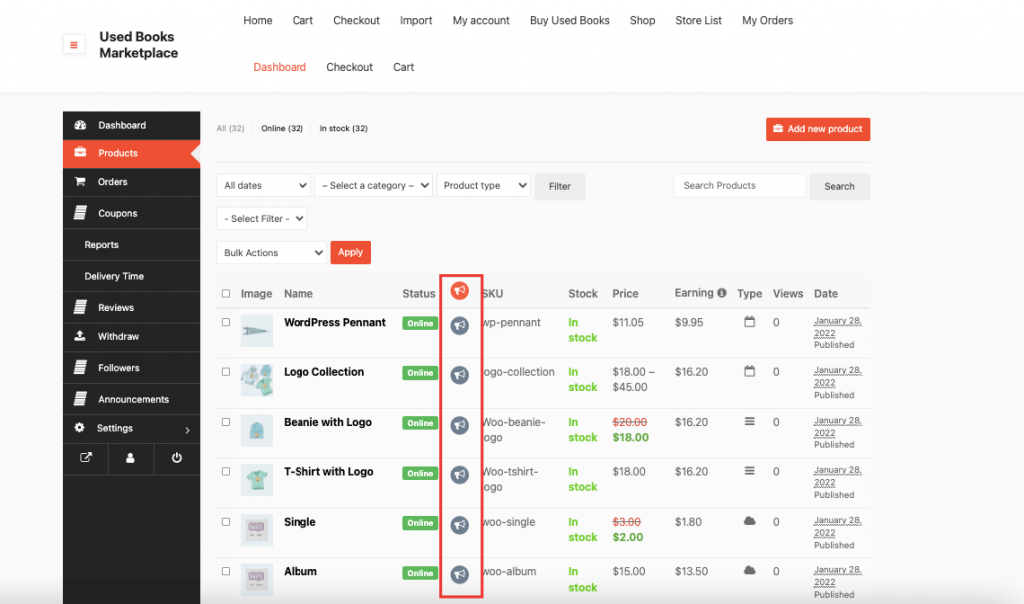
Vendors need to click on the advertising logo of the selected product. They will get a pop-up where they will see the details like purchase fee, number of slots available and the expiry date. They need to click on the OK button to finish purchasing.
After they click on the OK button the advertisement will be added to their cart. They will be redirected to the checkout page.
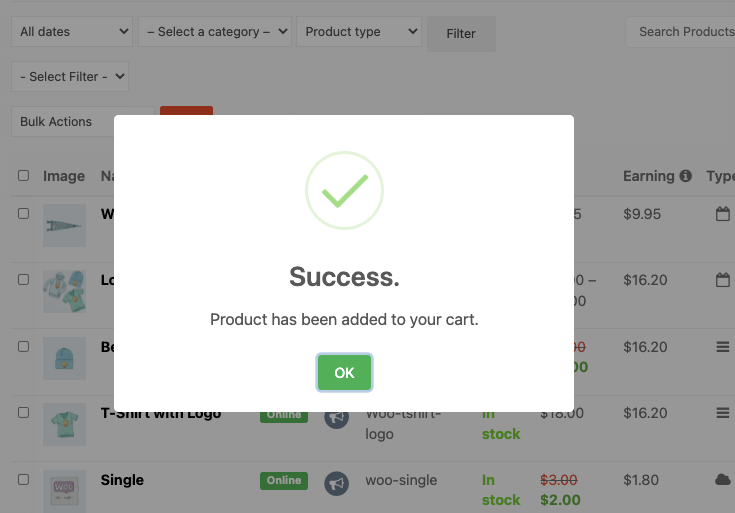
Note: Vendors can pay through any of the selected payment gateways. However, for purchasing with Cash on Delivery, the orders need to be completed by the admin for the advertisment process to be completed.
The advertisement will be added to the vendors selected product,
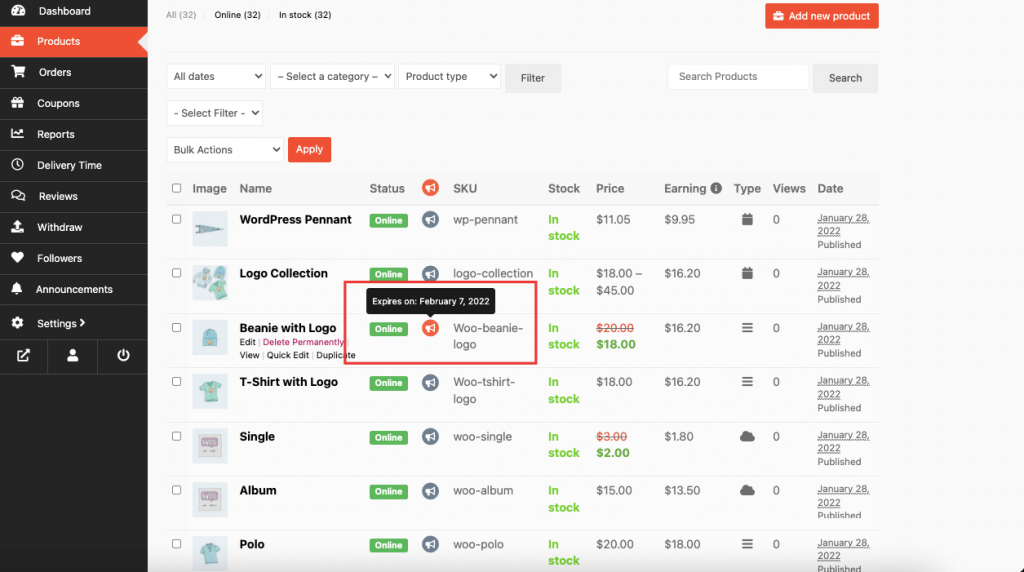
If the vendors want, they can purchase advertisment from the “Edit Product” page. Scroll down and there they will find the option to purchase advertisment with all the details.

If the vendors check the option, it will show a pop-up to buy the advertisment,
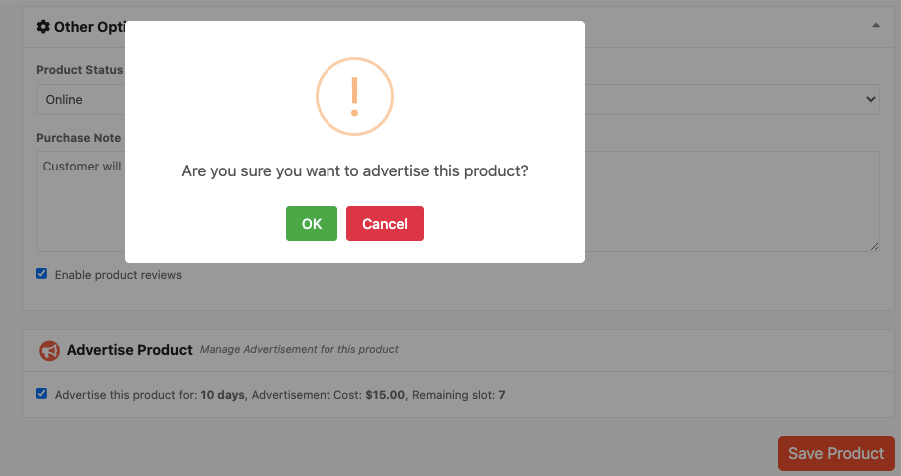
Rest of the proces are the same.
As we said earlier, advertised products will be displayed on top of the catalog listing eg: Shop page, Single Store Page,
Shop page, the advertised products will be shown on top of every page they are in. Like in the below image, Polo, Long Sleeve Tee are in the 2nd page of the shop . So, they are in the top of that page.
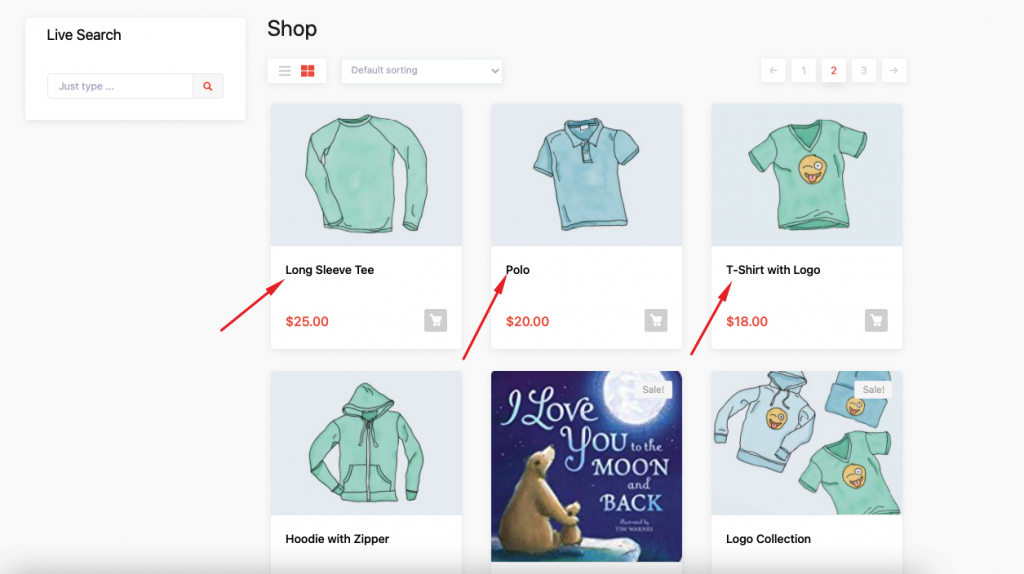
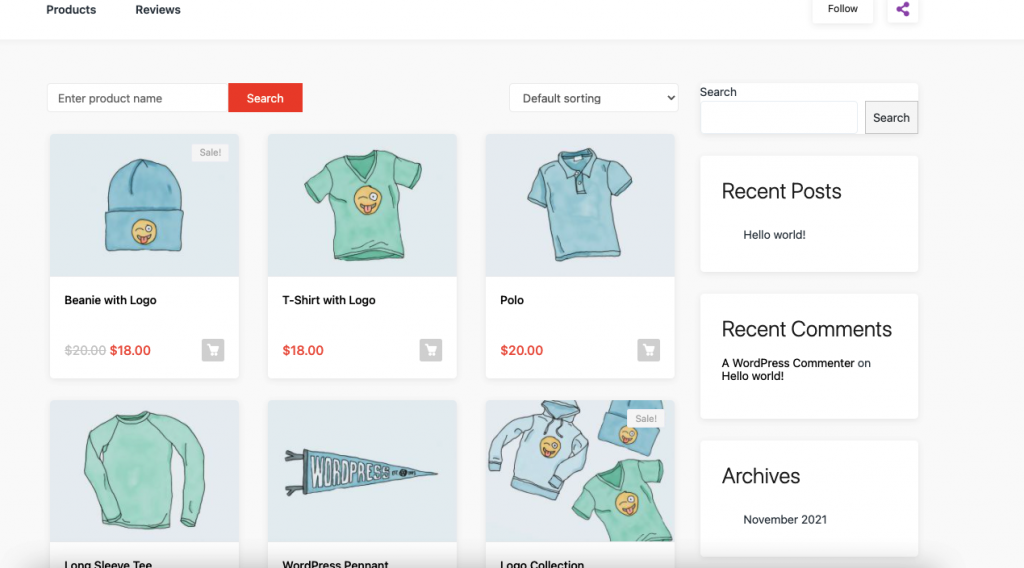
And in the single store page,